Showing and hiding lists - Pro
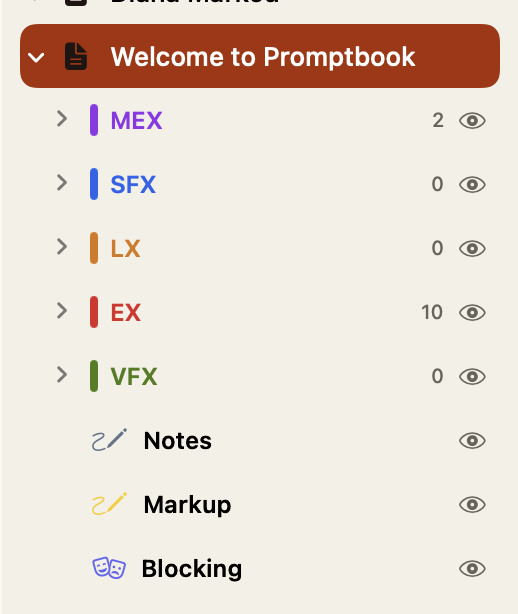
To decide which layers are visible on your copy of the script open the left sidebar.
Mac: Click the dropdown icon next to your current script iPad: Scroll to the bottom of the sidebar where the cue lists are displayed.
Click the eye icon to show or hide lists as you desire. This will only affect your copy, not other users on shared scripts.
Adding a cue list
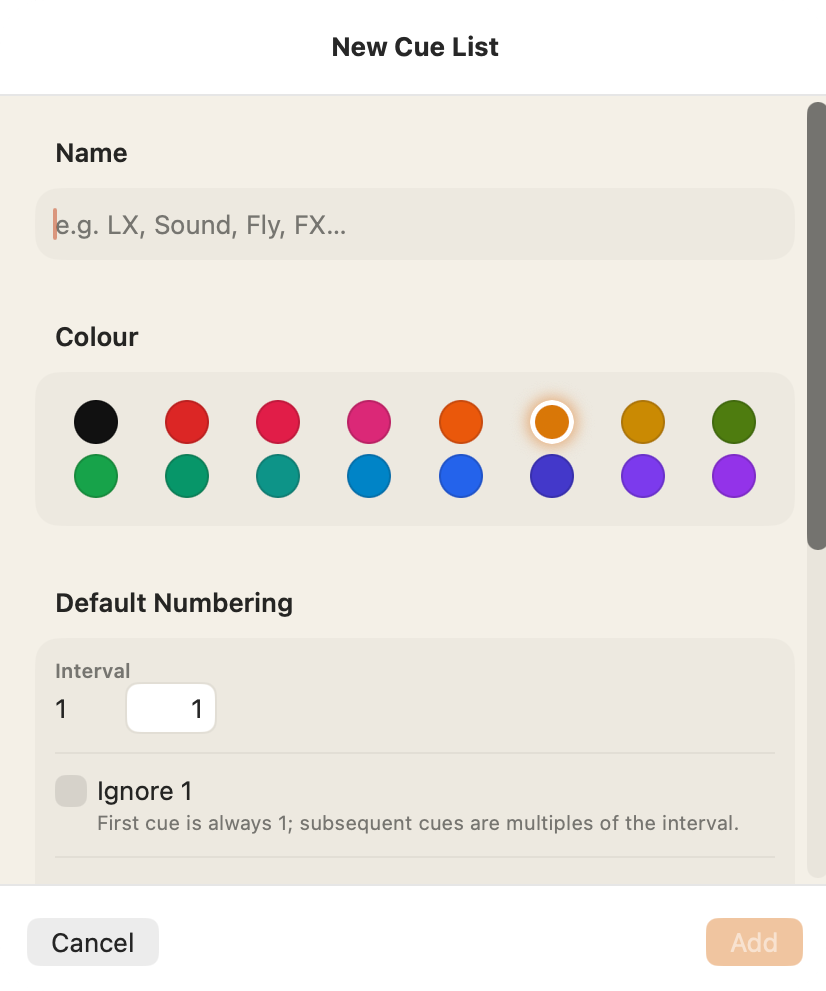
Open Script Settings ▸ Cues & Notes. Click Add in the top right. Customise your cue list with a Name and Colour.
Numbering rules
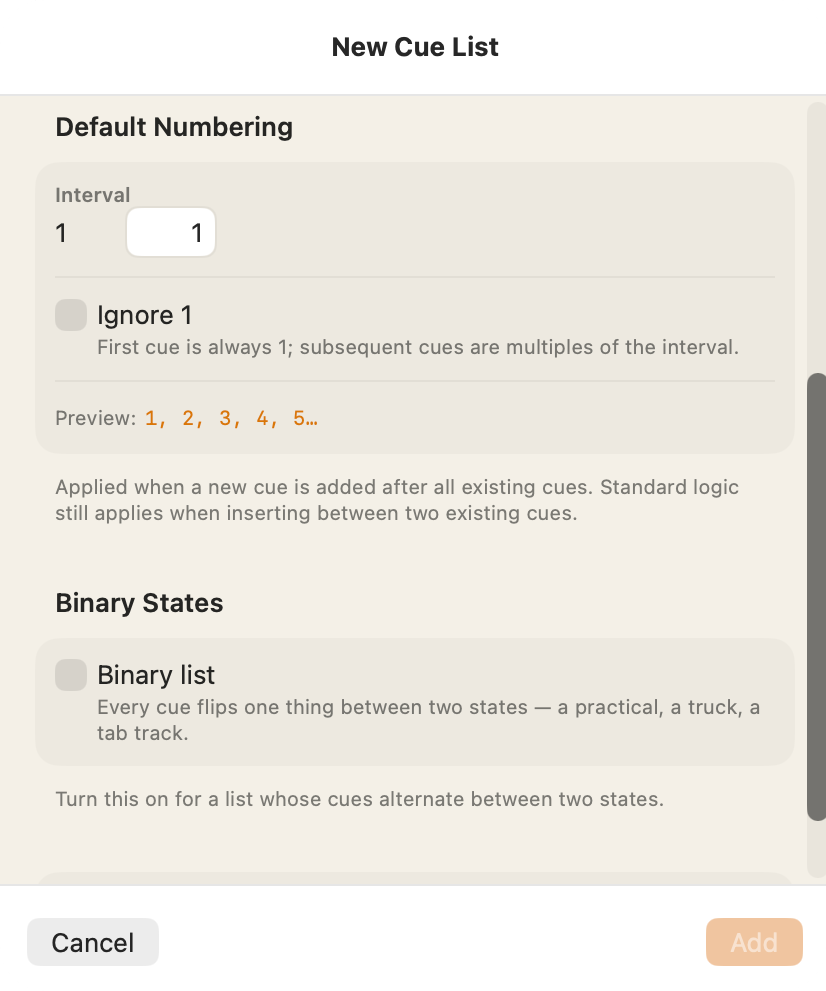
For standard cue lists you can define default numbering scheme. Say you wish to go up in 5's (common in lighting); define an interval of 5. You can still number cues whatever you wish but this will be the auto-suggested values. Similarly you can change these numbers later. Ignore 1 simply means that instead of the interval of 5 being (1, 6, 11, 16) it will go up in multiples of your defined interval starting at 1 (1, 5, 10, 15).
On / off lists
Alternatively for something simple such as a follow spot track you can define a cue list with 2 states. By default this is on and off. every cue you place will alternate between the 2 values you set.
Turn on Binary list in the cue list's Settings and name the two states in On state and Off state. Haze, follow spots and cue lights all work well this way.
Each cue is given the opposite state to the one before it, by its place in the script rather than its number. If you set a cue's state by hand in the cue editor, the cues after it follow on from that.
Turn on Call by name only to draw the cues as just "Haze ON" rather than "Haze 1 ON". The cue sheet and exports keep the numbers.
Notes, markup and blocking layers
Notes and markup layers are managed in the same place as cue lists: Script Settings ▸ Cues & Notes. Each layer has a name, a type (Notes, or Markup for cuts and highlights), a colour and a note text size.
Blocking layers are added from Script Settings ▸ Blocking ▸ Layers.
Pro: adding layers needs Pro. Renaming, hiding and deleting notes layers is free.
Tip: On a shared script, Keep this layer private to me gives you a notes layer nobody else can see.
Default lists for new scripts
If every show you do starts with the same lists, set them once in App Defaults ▸ Default Cue Lists and every new script will start with them.
Pro: changing the default cue lists needs Pro.
Lost a list? See Troubleshooting.