There are three types of cue for text scripts: range, point and free point. Score pages have a single style of cue.
- Range cues cover a run of words: the cue fires on that line.
- Point cues sit at a single point on a line.
- Free point cues can go anywhere on the page, not just on a line.

Step 1: Choose a cue list
Click the pill at the top of the page to choose the active cue list.
The pill lights up in the list's colour, and anything you place now goes into that list. Tap it again to put it down.
Tip: If you'd rather the pills sat down the side of the page, change Script Settings ▸ Layout ▸ Cue List Selector.

Step 2: Place the cue
For range cues, drag across the text to select your cue words. You don't have to highlight the full line: Promptbook records the longer cue line separately.
For point cues, double-click where you want the cue. Both of these cue types latch to the lines of the script to keep everything neat and consistent.
For a completely freely placed cue, hold Shift while double-clicking.
iPad: with no Shift key, double-tapping creates a latched cue, which you can then hold and drag to a different position.

iPad: if dragging scrolls the page instead of marking it, check the Cue / Scroll switch in the bottom-left corner is on Cue. With Apple Pencil Mode on, only the Pencil marks; your finger always scrolls.

Cues on a score
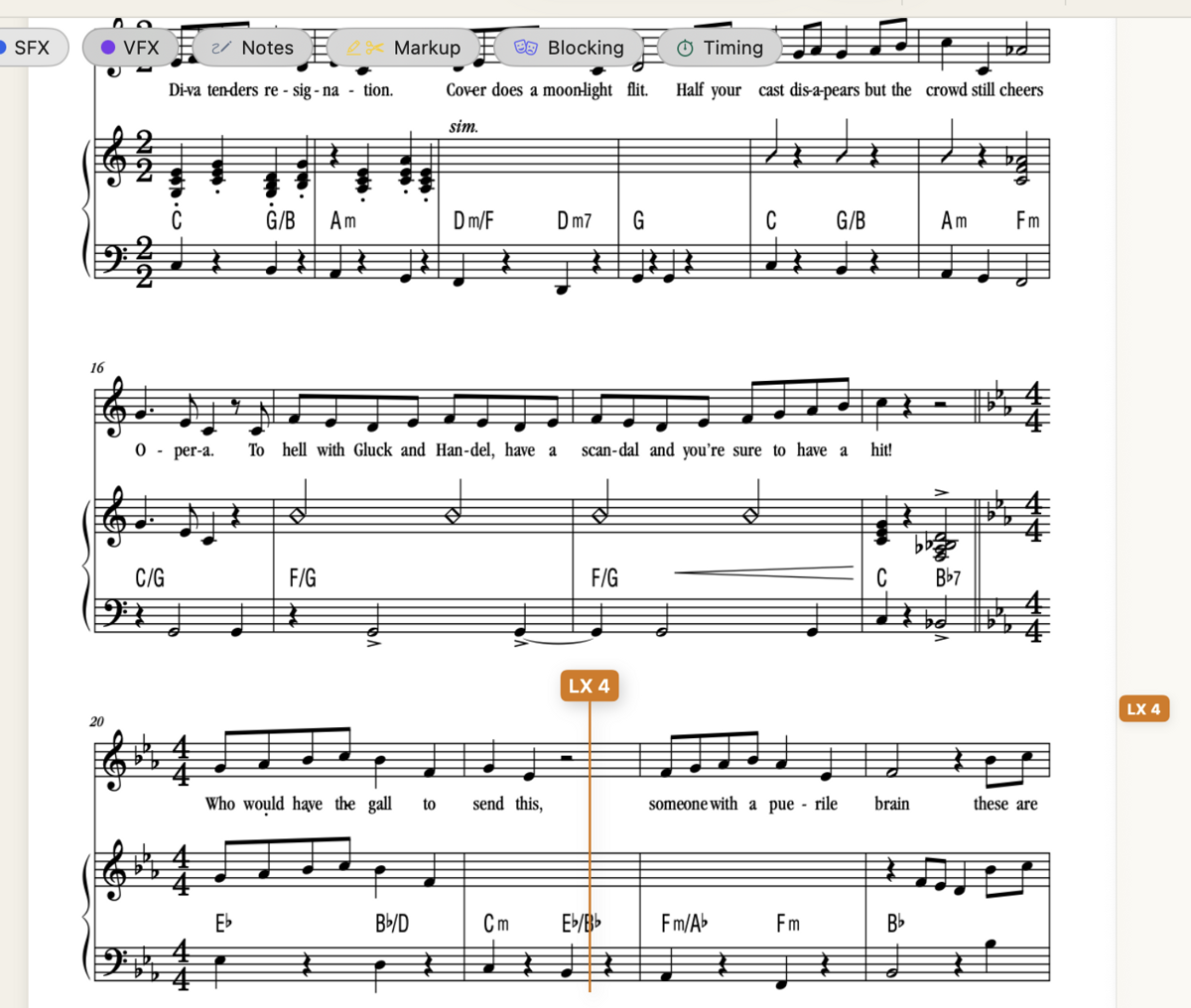
On a score, hover over the point in the music where the cue should fire, and click.
The cue appears as a vertical line through that system of staves. To move just its label, hold Shift and drag the label.
Step 3: Fill in the details
This brings up the cue details screen.
Give the cue its number and anything else it needs, then save. Cue Details & Multiple Cues covers everything on that screen.
Tip: If you'd rather number cues later, set Script Settings ▸ Layout ▸ New Cue to Create only and cues are placed straight away with the next number.