Not everything in a prompt copy is a cue. Notes, cuts and corrections live on their own layers, so you can show or hide them without touching your cues.
Adding a note
- Tap the Notes pill at the top of the page.
- Click where you want the note and type.
- Drag the handle on its side to make it wider or narrower.
The tag icon links a note to a piece of text. Tap it, then select the words. They're highlighted with a line to the note, and when you import a new version of the script the note follows those words to wherever they end up.

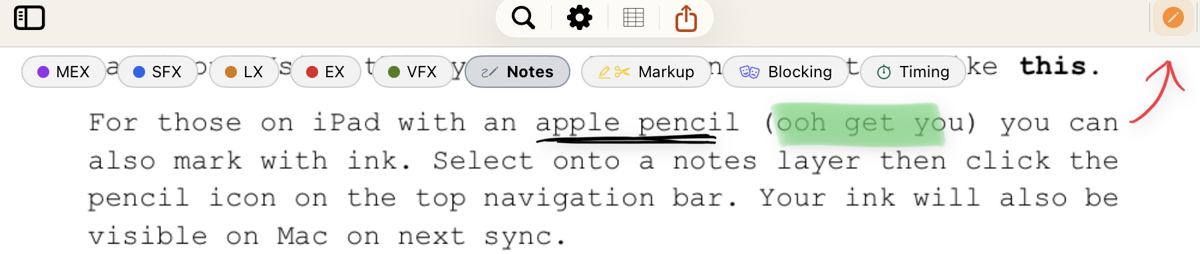
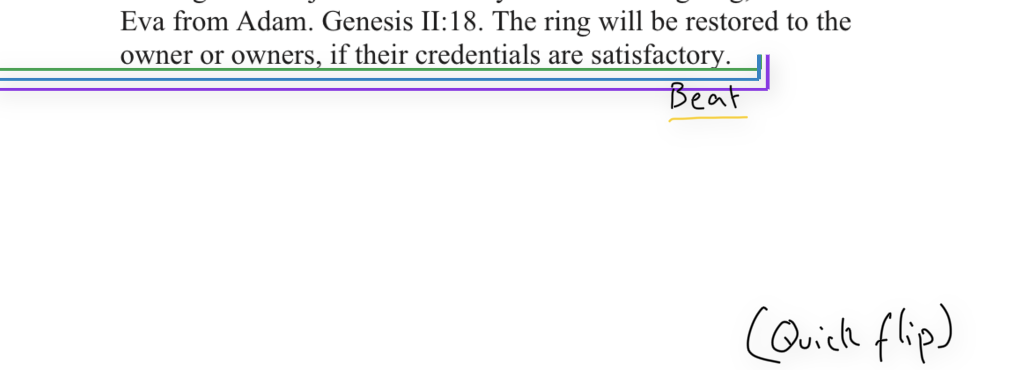
Handwritten notes (iPad)
- Tap a notes layer's pill.
- Tap the pencil icon in the toolbar.
- Write with Apple Pencil.
Tap with two fingers to undo and three to redo. Handwriting syncs to your other devices and prints with the PDF.
For marking with the Pencil and scrolling with your finger, see Apple Pencil Mode.
Cuts, highlights and corrections
Rehearsals change the text. The Markup layer keeps up with them.
- Tap the Markup pill.
- Choose a tool: Cut Text, Highlight or Correction.
- Select the words.
A correction lets you type the new words over the old ones. To undo a mark, select the same words again with the same tool. Highlights use the layer's colour, which you can change in Script Settings.

Keeping notes private
On a shared script, every layer is shared unless you say otherwise. Turn on Keep this layer private to me in a notes layer's Settings and only you will see it. See Sharing Scripts.